
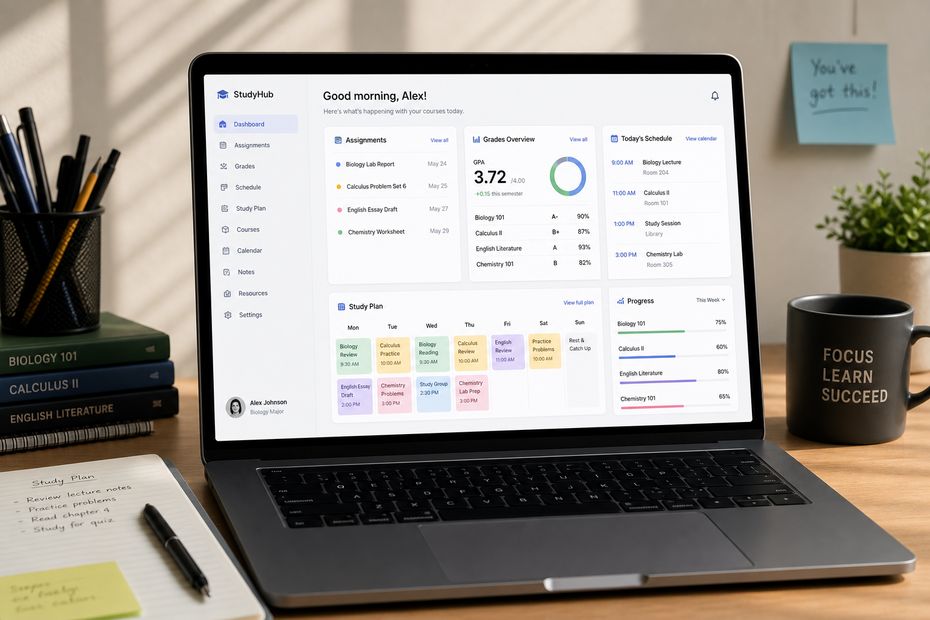
A personal learning dashboard gives you one reliable place to review course commitments, upcoming work, study plans, and academic progress. Build it by choosing one primary tool, entering your course information, connecting available calendar feeds, and reviewing the system once a week.
You’re three weeks into the semester, and your deadlines are scattered across a Learning Management System (LMS), email, paper syllabi, and group messages. Every time you feel caught up, another reading or quiz appears. A student dashboard turns those scattered details into a college organization system you can check before planning your day.
What Is A Personal Learning Dashboard For College?
A personal learning dashboard is a central academic planner that shows what you need to do, when you need to do it, and how you’re progressing. It doesn’t replace your college LMS or syllabus; it organizes their most useful information in a format you control.
Your dashboard can be digital, paper-based, or a combination of the two. A digital setup can display different views of the same information, letting you switch between a weekly schedule, course tracker, deadline calendar, and assignment list. A paper planner gives you fewer automation options, but it can work well when you prefer handwriting and manage only a small number of courses. The right format is the one you’ll open and update consistently.
The main benefit is reduced mental clutter. You no longer need to remember where each professor posts assignments or which course has a separate reading schedule. You still need to check official course systems, but your dashboard becomes the place where you turn new information into an actionable plan. Think of it as your personal control panel, not another place to store random notes.
What Information Should A Student Dashboard Track?
Your student dashboard should track information that affects your time, priorities, and academic decisions. Leave out details that don’t help you choose what to work on or prepare for.
Start with one record for every course. Include the course name, instructor, meeting location, meeting time, office hours, syllabus link, and LMS page. Add a status field if you need to separate active, completed, and future courses. Keeping these details together saves time when you need to contact an instructor or find a course document.
Create assignment records with a title, course, due date, assignment type, estimated work time, current status, and official source link. Record exams, readings, projects, and smaller tasks that are easy to overlook. Add grades only after results become official, and label estimated scores so you don’t confuse them with posted grades. Your dashboard should show the information you need without becoming a second version of every course website.
Which Tool Should You Use For Your Personal Learning Dashboard?
Choose your dashboard tool by comparing setup time, visual flexibility, calculation needs, and automation options. Notion, Google Sheets, Todoist, and paper planners solve different organization problems, so there isn’t one correct choice for every student.
Notion works well when you want linked course and assignment databases, calendar views, checklists, pages, and embedded resources in one workspace. Google Sheets is a practical choice for grade calculations, sortable assignment lists, and a straightforward semester planner. Todoist suits students who care most about task capture, recurring work, labels, filters, and fast entry with natural-language due dates. A paper planner remains useful when writing improves your recall or digital customization becomes a distraction.
You can also use a small combination without building duplicate systems. Google Calendar can manage time-specific commitments, with Notion or Todoist holding assignment details. A spreadsheet can handle grades without becoming your main task manager. Pick one system as your source of truth, then give every supporting tool a narrow role.
How Do You Build Your First Dashboard?
Build the first version around your current semester rather than designing a permanent academic system. A useful dashboard can be set up in one afternoon when you limit customization and focus on information you already need.
Create a course area first, then enter every active class from your schedule. Add links to the syllabus, LMS page, online meeting room, shared files, and instructor contact information. Create a separate assignment area and connect each task to its course. Use simple statuses: Not Started, In Progress, Waiting, and Done.
Add three working views: upcoming deadlines, this week’s work, and assignments grouped by course. Sort upcoming work by due date, then filter completed items out of your active views. Use color only when it communicates meaning, perhaps one color per course or one warning color for overdue work. Skip decorative widgets until you’ve used the dashboard long enough to know what’s missing.
How Do You Sync College Deadlines With Your Calendar?
You can sync many course deadlines by subscribing to an external calendar feed or importing an Internet Calendar (iCal) file. Canvas and Blackboard Learn provide calendar tools that can send supported course events to a personal calendar.
An .ics file is a calendar file used to transfer events between calendar services. An iCal subscription is different from a one-time import because a subscription can receive later changes from the original calendar feed. In Canvas, look for the calendar feed option in your student calendar, copy the feed address, and add it through Google Calendar’s subscription controls. Blackboard Learn also provides calendar subscription options, though the exact menu can depend on your college’s version and settings.
Treat synced events as a convenience rather than your only deadline check. Some instructors place requirements in announcements, modules, assignment instructions, or syllabus documents without adding matching calendar entries. Review the official LMS and compare it with your dashboard during your weekly update. If your college uses Moodle, follow your institution’s help page because available calendar settings can differ between installations.
How Do You Add A Grade Tracker And GPA Estimator?
Create a grade tracker by recording each score, its category, and the weighting rules stated in the syllabus. Keep your personal estimate separate from the official grade shown by your instructor or college.
For a category-weighted course, calculate the average within each category, then multiply that average by the category’s weight. Add the weighted results to estimate your current course grade. If homework has an average of 90 percent and carries 30 percent of the course grade, its current contribution is 27 percentage points. Repeat the calculation for exams, projects, participation, and any other graded categories.
In Microsoft Excel or Google Sheets, a basic assignment-weight formula can use SUMPRODUCT(scores, weights) divided by SUM(weights). A Grade Point Average (GPA) estimator requires you to map expected course grades to your college’s quality-point rules, multiply those points by course credits, and divide by total attempted credits. Grading scales, repeated-course policies, pass-or-fail classes, and rounding rules can vary. Use your dashboard estimate for planning, then rely on your college record for your official GPA.
How Do You Keep Your Dashboard Updated Without Wasting Time?
Maintain your dashboard with a short weekly review and quick updates when new assignments appear. Consistency matters more than adding advanced features or redesigning the page every month.
Set aside about 20 minutes at the same time each week. Check every course announcement, compare LMS calendars with your deadline tracker, enter newly assigned work, and mark completed tasks. Review your grades, identify missing results, and scan the following two weeks for exams or projects. Then choose the work that belongs in your weekly study plan.
Avoid entering the same assignment into several task systems. Don’t automate a process until the manual version works, and don’t add fields you rarely use. At the end of the semester, archive completed courses, save any grade records you need, and duplicate the useful parts of your setup for the new term. Your dashboard should become easier to maintain with each semester, not larger and harder to navigate.
What Mistakes Cause College Dashboards To Fail?
College dashboards usually fail when they demand too much maintenance, contain duplicate information, or aren’t checked regularly. Reduce the system until updating it feels easier than searching through separate course platforms.
Over-customization is a common problem. Students can spend hours selecting icons, building extra pages, and adjusting colors before entering their real assignments. Start with courses, deadlines, statuses, and a weekly view. Add another feature only when it solves a repeated problem.
Automation can also create false confidence. A broken calendar subscription or missing LMS event can leave an assignment outside your dashboard, so schedule a manual comparison each week. Protect your privacy by avoiding stored passwords, private instructor messages, or sensitive feedback in third-party tools. When a paper planner already meets your needs, keep using it and add only a calendar subscription or simple grade sheet where it offers a practical benefit.
What Should A College Learning Dashboard Include?
- Course list with instructor and location
- Assignment deadlines and exam schedule
- Weekly study plan or time blocks
- Grade tracker with weighted categories
- Reading list and resource links
Build A Dashboard You Will Actually Use
Your personal learning dashboard should make academic decisions faster: what’s due, what needs attention, and where your study time should go. Start with a small course tracker and deadline view, then add calendar syncing or grade calculations when they reduce manual work. Keep one source of truth, verify it against official course systems, and complete a short weekly review. Archive old courses instead of letting past semesters crowd the active page. A simple dashboard you trust will serve you better than an elaborate system you avoid opening.
Reference Links
- Notion Template Gallery
- Notion Student Dashboard Template
- Google Calendar Help: Import Events
- Google Calendar Help: Subscribe To Calendars
- Todoist Student Schedule Guide
- Microsoft Student Templates
- Canvas Calendar Features
- Canvas Community Calendar Guidance
- Blackboard Learn Calendar Help
- University Of North Carolina Learning Center Study Tools
- Cornell Learning Strategies Center Study Guidance
- Zapier Canvas And Google Calendar Integrations.

Yitz Stern is a New York–based entrepreneur and business consultant with 20+ years of experience in alternative funding and real estate. A former CEO of Fundry and managing director at Tiger Financial Technologies, he now advises mid- to large, non-public companies on capital strategy and scalable growth while investing in multifamily real estate